CS2 External Troubleshooting

Make yourself familiar with troubleshooting steps for a variety of our most common issues.

ESP Troubleshooting
ESP Lagging / Low FPS / Unsmooth Overlay

Distort is fully external and uses your CPU to draw the overlay on your screen. This can be intensive, especially for older machines. To improve performance, try the following:

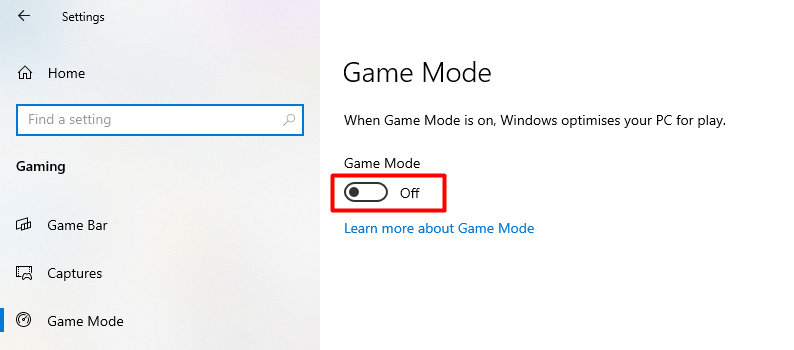
  1. Go to windows settings → select gaming → select game mode → disable "Game Mode"

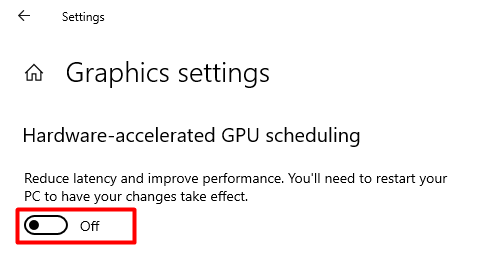
  1. Go to windows settings → select system → select display → select graphics settings → disable "Hardware-Acceleterated GPU scheduling"

  1. You must restart your computer.

If the above solutions do not work, you can also fix this by limiting your FPS in CS2 with the "fps_max console.

Set the fps_max value to be slightly above your average fps. _Example: if you normally get 200fps, then set fpsmax to 210 If the above solutions do not work, please open a ticket at https://distort.wtf/account/tickets and include your PC specs, and winver.

ESP in Wrong Position / 4:3 Stretched Resolution Setup

To fix this issue, please follow these steps:

  1. Set your windows resolution to match your CS2 resolution

    1. Go to windows settings → select system → select display → select your desired resolution.

Put your desired resolution here. In this example, we use 1280x720
  1. Open a new loader and inject.

Aimbot Troubleshooting

Aimbot is not working (1/2)

The most likely reason for your aimbot not working is a config issue. In order to begin troubleshooting, please take these steps:

  1. Download our test config and save it as a .cfg fille

  2. Install the config, and load it ingame - if you don't know how to install a config, click here!

  3. Test to see if your issue is now resolved

  1. If your issue still isn't resolved, please proceed by removing incompatible mouse drivers

Aimbot is not working (2/2)

This issue is caused by having conflicting mouse drivers. To fix this issue, follow these steps:

  1. Uninstall any mouse software (Razer Synapse, Logitech G Hub, Corsair iCUE, etc)

  2. Head to Device Manager.

  1. Select the "Mice and other pointing devices" section.

  1. Uninstall as many inactive / old devices as possible.

How do I know if it's an inactive device?

Right click any of the devices and select "Uninstall Device"

Then, test your mouse

  • If your mouse still works → You uninstalled an old driver.

  • If your mouse stops working → You removed the real device. Restart your PC and try again.

  1. You must restart your computer.

Other Troubleshooting

Cheat crashing when loading onto maps

This issue can be caused by your ISP or country blocking servers that we rely on in order to download files. To fix this issue, please take the following steps:

  1. Download the maps

  1. Press Windows + R and paste the following:

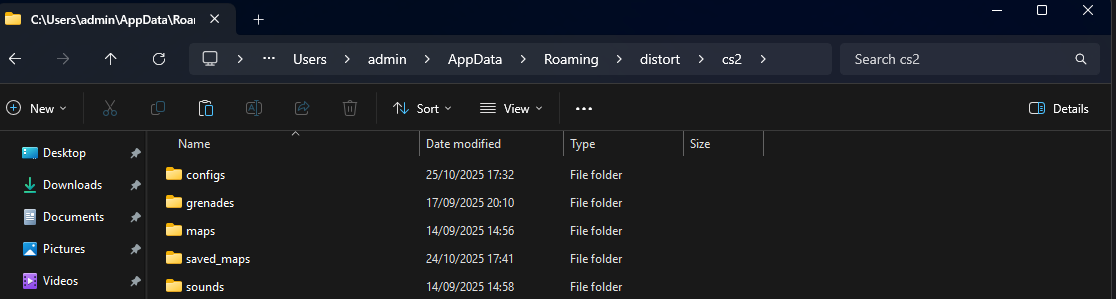
    %appdata%/distort/cs2/
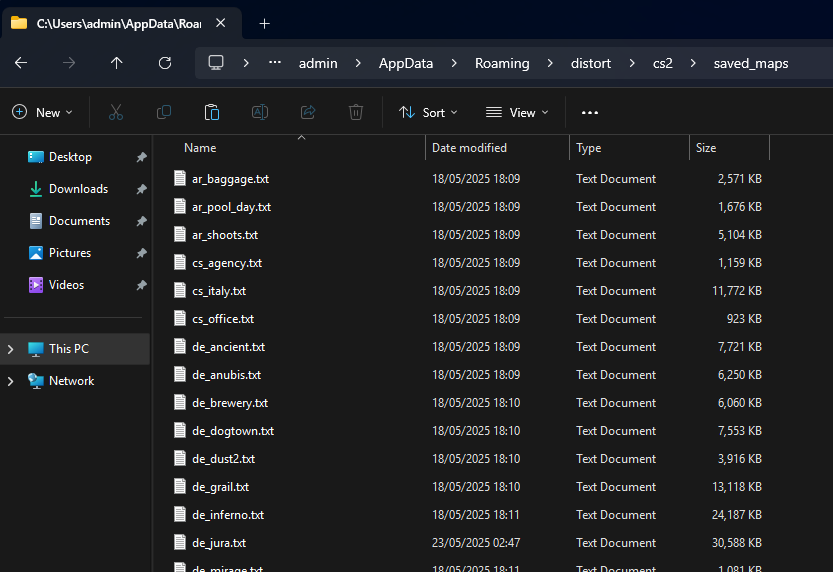
  1. Afterwards, create a new folder named "saved_maps"

  1. Place the downloaded maps inside of this folder

Last updated